Start Here
Backup your company file → Uninstall the old QuickBooks version → Restart the PC → Download QuickBooks Desktop Pro Plus 2024 → Install → Activate → Restore/upgrade your company file.
Download QuickBooks Desktop Pro Plus 2024 → Install normally → Activate → Create a new company file.
Keep the activation card you received with your purchase next to you while following this guide. It contains the information you will need:
- License Number: XXXX-XXXX-XXXX-XXX
- Product Number: XXX-XXX
- Validation Code: XXXXXX
Keep your activation information private. Do not post or share your License Number, Product Number, or Validation Code publicly.
If you get stuck at any step, receive an error message, or are not sure what to select, please use the Live Chat button on this page. Our support team can guide you through the next step.
Tip: If you see an error, take a screenshot before starting the chat so support can identify the problem faster.
Download QuickBooks Desktop Pro 2024
After completing the steps above, download the correct QuickBooks Desktop Pro 2024 — US version using the link below.
Important: If you already had an older QuickBooks version installed, make sure you backed up your company file and uninstalled the old version before installing this version. If this is your first QuickBooks installation, you can install it normally.
Watch this installation tutorial and follow the steps shown before continuing with activation.
 ▶
▶
Installation — Choose the Correct Path
This is the most important part of the guide. Please determine whether QuickBooks has been used on this computer before.
Path A — You already have an older QuickBooks Desktop version
- Open your old QuickBooks first. Do not uninstall it until you have protected your company data.
- Create a backup. Go to File → Back Up Company → Create Local Backup. Save the
.QBBfile somewhere safe, preferably with a second copy on another drive or secure storage. - Close QuickBooks completely.
- Uninstall the old QuickBooks program. In Windows, open Control Panel → Programs and Features / Uninstall a Program → select the old QuickBooks Desktop version → Uninstall/Change → Remove. Uninstalling the program is separate from your company data, but you should still keep a verified backup before making changes.
- Restart the computer.
- Download the correct/latest QuickBooks installer shown on your activation card. Do not reuse an old installer or old QuickBooks shortcut.
- Install the correct QuickBooks 2024 version. Then use the License Number and Product Number supplied with that order.
- Activate the newly installed version using the activation instructions later in this guide.
- Restore/open your existing company data only after the new QuickBooks installation is working.
Path B — This is your first time using QuickBooks Desktop
- You do not need to uninstall anything if no QuickBooks Desktop version is already installed.
- Download the installer shown on your activation card.
- Install QuickBooks normally and follow the on-screen installation steps.
- Enter the License Number and Product Number shown on your activation card.
- Complete activation using the activation section of this guide.
- Create a new company file and begin your QuickBooks setup.
3. Back Up Your Existing QuickBooks Data
If you are upgrading from an older QuickBooks version, moving to another computer, reinstalling, or troubleshooting an existing installation, create a backup first.
- Open your existing QuickBooks Desktop version.
- Open the company you want to protect.
- Go to File → Back Up Company → Create Local Backup.
- Select Local Backup, choose a safe location, and complete the backup.
- Keep an additional copy on an external drive or another safe location when possible.
| File | What it means |
|---|---|
.QBW | Your working QuickBooks company file. |
.QBB | A QuickBooks backup. Use “Restore a backup copy.” |
.QBM | A portable company file. Useful when moving or working with some older files. |
Watch this tutorial to learn how to back up and restore a QuickBooks Desktop company file.
 ▶
▶
4. Download & Install QuickBooks Desktop Pro Plus 2024
- Download the QuickBooks installer from the link shown on your activation card.
- Save the installer to your computer.
- Right-click the installer and select Run as administrator if needed.
- Accept the license agreement and continue.
- Enter the License Number and Product Number shown on your activation card when requested.
- For a normal single-computer setup, choose the appropriate local/Express installation. For a server or multi-user network, use Custom and Network Options.
- Complete installation and open QuickBooks Desktop 2024.
5. Activate QuickBooks Correctly
After installation, open QuickBooks and complete registration/activation using the information shown on your activation card.
- Open QuickBooks Desktop Pro Plus 2024.
- Open the registration/activation window if it does not appear automatically.
- Confirm the License Number and Product Number match your activation card.
- If your license activation instructions require the validation-code workflow, choose Register by Phone.
- On the registration screen, use Issues with Activation? as shown in the activation tutorial. Do not choose Message Now when following this validation-code procedure.
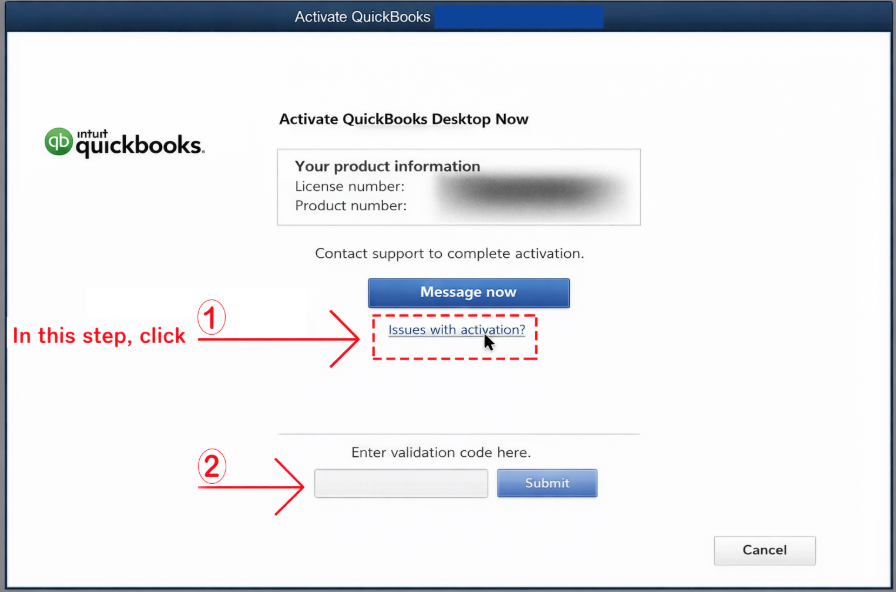
Select Issues with Activation? as shown above.
- Enter the Validation Code exactly as supplied in the instructions on this guide, then continue with Next.
- Restart QuickBooks and confirm that the product opens normally.
Watch this tutorial and follow the activation steps shown in the video.
▶
If it says “Wrong Product Number”
This commonly happens when the license/product information is being entered into an installation that does not match the purchased QuickBooks year, edition, or region.
- Open QuickBooks and press F2 to check Product Information.
- Confirm that the installed product is the correct 2024 Windows edition.
- If you still have an older or different edition installed, make sure you are opening the newly installed 2024 program—not the old shortcut.
- If the wrong software was installed, back up your company data, remove the incorrect installation if appropriate, and install the correct version from your activation card.
- If the error remains, send Customer Support a screenshot of the error and the Product Information window.
6. Create a New Company File or Restore Existing Data
After QuickBooks is installed and activated, choose the option that matches your situation.
Option A — First Time Using QuickBooks: Create a New Company File
If you do not have an old QuickBooks company or backup, you do not need to restore anything. Create a new company file instead.
- Open QuickBooks Desktop Pro Plus 2024.
- On the No Company Open window, select Create a new company.
- Choose Express Start / Start Setup for a guided setup, or Detailed Start if you want to enter more company information manually.
- Enter your business/company name and the requested business information.
- Choose your industry and business type where requested.
- Create and save the new company file.
- Continue setting up your chart of accounts, customers, vendors, banking, users, and other preferences as needed.
Option B — Existing QuickBooks User: Restore or Upgrade Your Data
Restore a .QBB backup
- Open QuickBooks Desktop 2024.
- Select File → Open or Restore Company.
- Select Restore a backup copy → Local backup.
- Browse to your
.QBBfile. - Choose where the restored company file should be saved.
- Open the restored file and sign in with the company-file Admin credentials.
Upgrade a company file from an older QuickBooks year
- In the old QuickBooks version, open the company file.
- Run File → Utilities → Verify Data.
- If QuickBooks finds problems, run Rebuild Data, then Verify Data again.
- Create a fresh backup.
- Open QuickBooks Desktop 2024.
- Select File → Open or Restore Company and select the old
.QBW, or restore the.QBBbackup. - Sign in as the company-file Admin and allow QuickBooks to update the file.
- Do not interrupt the conversion.
.QBM copy can also be useful in some migration situations. Keep untouched copies of the original data before attempting conversions.For additional step-by-step instructions on restoring a .QBB backup and creating the restored .QBW company file, open the official QuickBooks Help article.
7. QuickBooks Pro Plus 2024 — 3 Users / 3 Devices & Multi-User Mode
Multiple Company Files
You do not need a separate QuickBooks program installation for every company file. You can create or open separate company files and switch between them from QuickBooks.
- Open QuickBooks Desktop Pro Plus 2024.
- For a new business, choose File → New Company and create a separate company file.
- For an existing business file, choose File → Open or Restore Company.
- To move from one company to another, close the current company and open the other company file from the No Company Open window or the recent-company list.
- Keep each company’s accounting data in its own company file.
What Is Multi-User Mode?
Multi-User Mode allows two or more licensed QuickBooks users to open and work in the same company file at the same time. For example, one user can work with customers while another handles bills or other permitted accounting tasks. Access also depends on the permissions assigned to each QuickBooks user.
For a 3-user setup, you can have up to three licensed users working with QuickBooks according to the purchased license. The company file is normally stored on one host/server computer or shared network location that the authorized workstations can reach.
How the 3-User Network Setup Works
- Choose the host/server computer. This is the computer that stores the main QuickBooks company file.
- Install QuickBooks on the computers that will use it according to your 3-user license.
- On the host/server, install/configure the required QuickBooks hosting components and QuickBooks Database Server Manager when needed.
- Store the main
.QBWcompany file in a folder accessible to the authorized computers on your local network. - On the server/host, scan the company-file folder with Database Server Manager if required.
- Open QuickBooks on the host and configure hosting correctly. In a normal dedicated network setup, avoid enabling conflicting hosting on the workstations.
- In QuickBooks, go to the user-management area and create a separate QuickBooks username for each person who needs access.
- Assign appropriate permissions to each user. Not every employee needs full Admin access.
- Open the company file and choose File → Switch to Multi-user Mode.
- On the other authorized computers, open QuickBooks and browse to/open the same shared company file.
- Each person signs in using their own QuickBooks user credentials.
Example
If your business has three QuickBooks users, User 1, User 2, and User 3 can work from their licensed computers and access the shared company file when the network and permissions are configured correctly. You can also maintain Company A, Company B, Company C, and other separate company files and switch between those files as needed.
Open Intuit Multi-User / H202 Guide
8. Troubleshooting Common Problems
Search for your error below. If the solution does not fix the problem, open the Live Chat on this page and send support a screenshot of the error.
Wrong Product Number / Incorrect License or Product Number Activation
Fix: Check the license order details; press F2 in QuickBooks and compare the installed product; make sure the correct 2024 program is open; reinstall the correct installer if necessary. Never substitute license/product details from an old installation.
Validation Code Is Incorrect / Service Temporarily Unavailable Activation
Fix: Verify every character, confirm the installed edition/year, restart QuickBooks, then use QuickBooks Tool Hub if the registration files appear damaged. Send our support team a screenshot if the supplied activation details are being rejected.
Activation Screen Is Blank or Does Not Appear Activation
Error 3371 — Could Not Initialize License Properties License
Fix: Close QuickBooks → open QuickBooks Tool Hub → Installation Issues → 3371 Error Fix → OK → reopen QuickBooks. If necessary, run the Install Diagnostic Tool.
Error 1904 During Installation Install
Fix: Close QuickBooks and run QuickBooks Tool Hub → Installation Issues → QuickBooks Install Diagnostic Tool. Restart Windows after it completes, then try QuickBooks again.
Error 1935 / Installation Fails or Stops Install
Installation or Upgrade Stops / Unrecoverable Error Upgrade
Cannot Restore a .QBB Backup Company File
.QBB. Use File → Open or Restore Company → Restore a backup copy → Local backup. Save the restored .QBW to a local folder with a simple path. If the backup is damaged, test another recent backup and use Tool Hub/File Doctor where appropriate.
QuickBooks Asks for a Password After Restore Company File
Error -6000 Series When Opening a Company File Company File
Error H202 / H505 / Cannot Switch to Multi-User Network
Fix: On the server computer, run Tool Hub → Network Issues → QuickBooks Database Server Manager, scan the company-file folder, confirm Windows/network permissions and firewall access, and verify that workstations are not incorrectly hosting the file.
“Connection Has Been Lost” Network
QuickBooks Opens but Crashes / Freezes / Won’t Open Program
activation card / Save as activation card / Printing Problems Program
Old QuickBooks Is Still Opening Instead of 2024 Install
QuickBooks Shows “Repair” During Setup Install
9. QuickBooks Tool Hub — Which Tool Should I Use?
| Problem | Tool Hub area |
|---|---|
| Company file won’t open / possible file damage | Company File Issues → Quick Fix my File / File Doctor |
| H202 or network/multi-user problem | Network Issues |
| QuickBooks freezes, crashes, activation card/print issue | Program Problems |
| 3371 or installation problem | Installation Issues |
| Admin password reset | Password Reset |
10. Need Help? Contact Our Support Team
If you have any problem with installation, activation, restoring your company file, Multi-User Mode, or any step in this guide, please contact our support team directly.
Use the Live Chat button on this website for the fastest assistance. Tell us which step you are on and what problem you are seeing.
Email: support@qb-steps.us
Phone: +1 (626) 508-4773
Official Technical References
These links can be kept in the page footer or removed from the public layout if you prefer. They point to Intuit documentation used for general QuickBooks troubleshooting procedures.